
A production schedule template is a sheet that lists every job, the steps it goes through, the hours each step takes and the week it’s planned for, and then checks that plan against the hours each department actually has. You can download ours below, free, as an Excel file that also opens in Google Sheets. We’re EZIIL, we make scheduling software for fab shops, and we built this template for fabrication work: a job moves through cutting, fit and weld, coating and assembly, and not down one line per order.
A spreadsheet like this works well while one department sets the pace and you have, roughly, a dozen or so live jobs. The trouble starts the day work has to pass through a second operation: you add powder coating, or bring welding in house, and now a slip in one department moves the next one’s week. This guide covers what goes into a production schedule, how to build one in Excel step by step, how to read the capacity check, and the five signs your shop has outgrown the sheet.
Free download: production schedule template for fab shops (Excel)
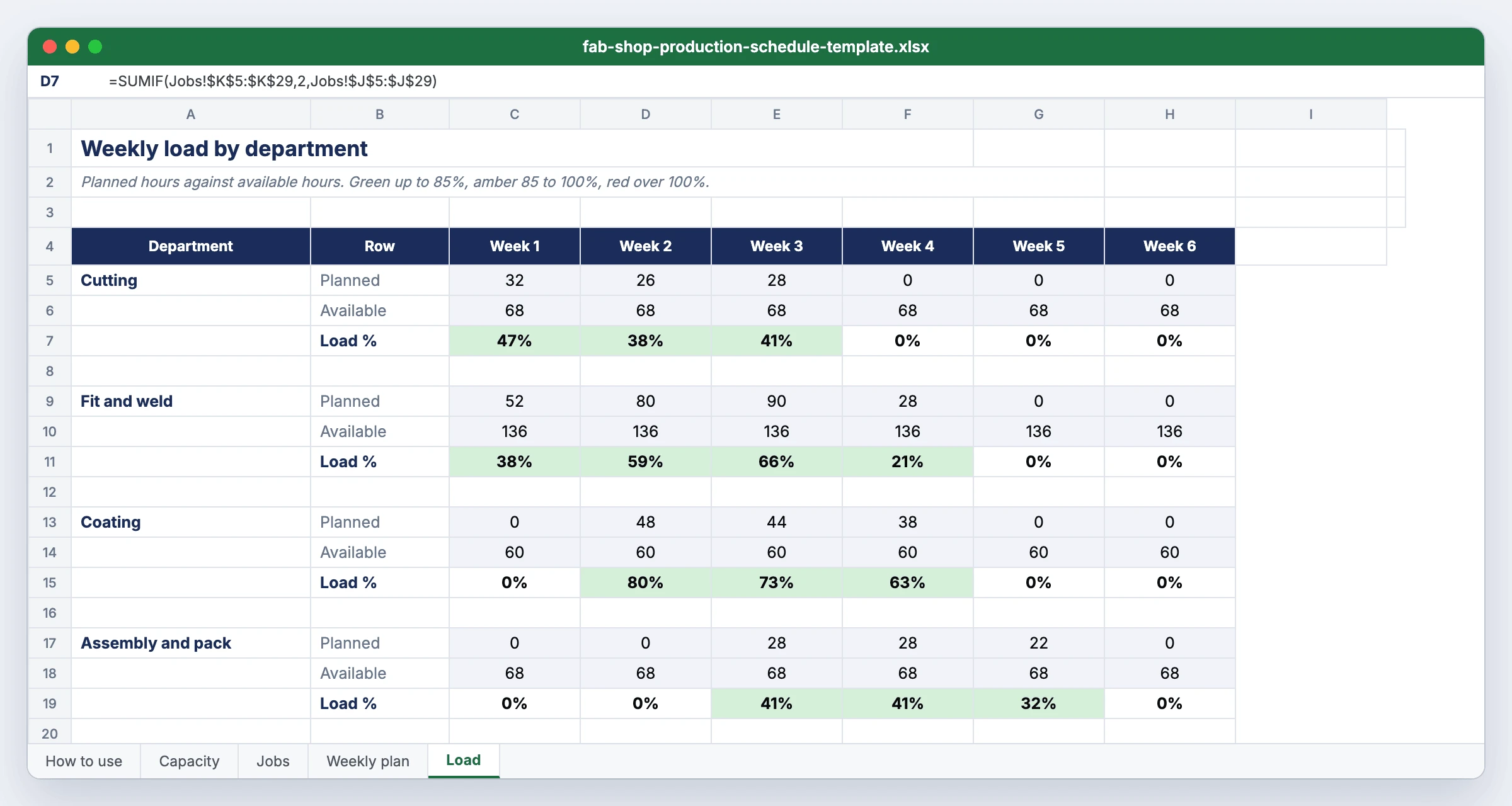
Jobs with hours per department, a weekly plan you can print, department capacity and a load check that turns red when a department has more work than hours. Six sample jobs filled in. Opens in Excel and Google Sheets. No sign-up needed.
What goes into a production schedule?
A production schedule for a fab shop needs seven things: the job, the steps it passes through, the planned hours for each step, the week each step is planned, the date you promised the customer, the job’s status, and the hours each department has available that week. Leave out the last one and what you have is a to-do list.
| Field | Why it matters on a fab floor |
|---|---|
| Job number and description | The name everyone uses on the floor, on drawings and on the delivery note |
| Steps (operations) | Cutting, fit and weld, coating, assembly: the departments the job visits, in order |
| Planned hours per step | From the estimate. Without hours you can’t tell whether a week is full |
| Planned week per step | When each department is expected to do its part |
| Promised date | What the customer was told. The schedule exists to protect it |
| Status | Not started, in progress, done, on hold |
| Available hours per department | People x hours x a realistic efficiency, minus holidays |
People often mix this up with a master production schedule. A master production schedule (MPS) says what and how many finished products to make in each period, and it suits repeat production. A custom fab shop makes one-off jobs, so it schedules jobs and their steps against department hours. That’s what this template does.
How to make a production schedule in Excel, step by step
To make a production schedule in Excel, list your departments and the hours each has per week, break every job into steps with planned hours, put each step in a week, and sum the hours per department per week against what it has. Color anything over 100% red and update the sheet once a week.
You can build this in about an hour, or start from the template and change the sample data. These are the steps the template follows.
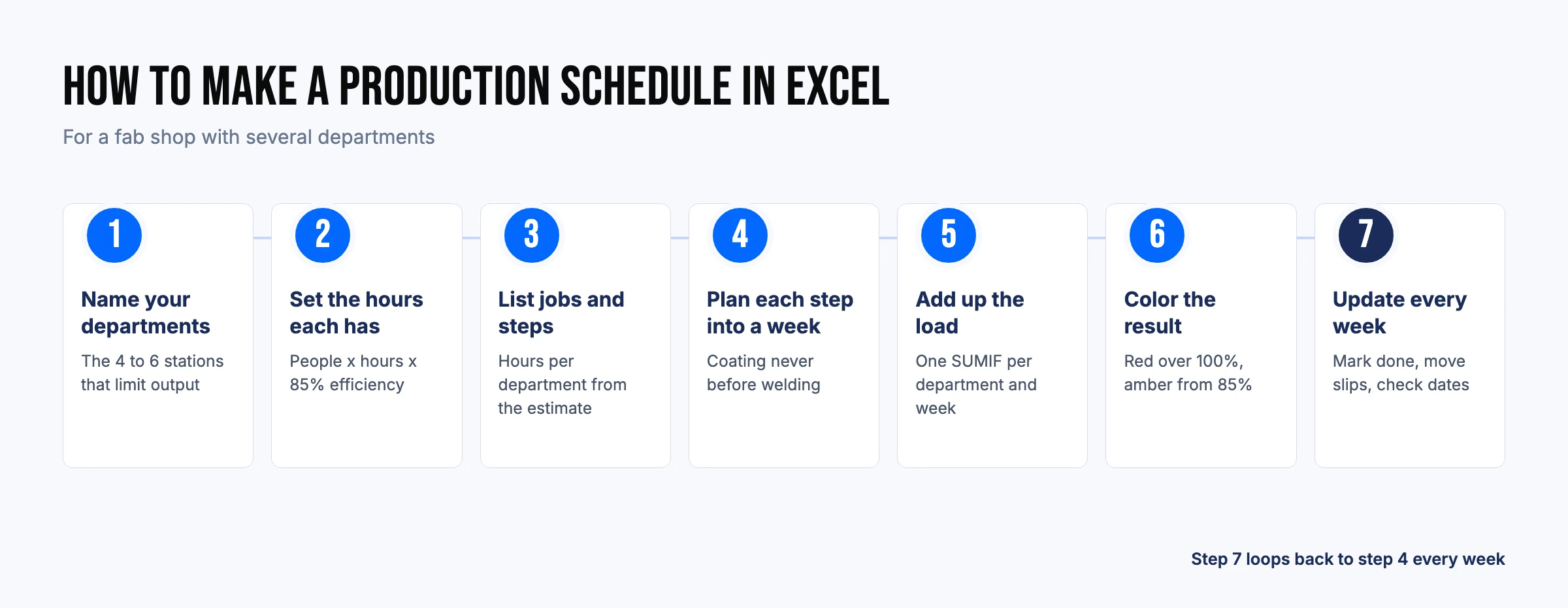
- Name your departments. List the stations a job passes through. Keep it to the four to six that actually limit your output (for example laser, press brake, weld, powder coat). You don’t need a row for every saw and grinder.
- Work out the hours each department has. People x hours per person per week x an efficiency factor. Start at 85%: nobody spends 40 hours a week on the job itself once you count setup, cleaning, breaks and walking to stores. Four welders on 40 hours at 85% give you 136 hours a week, not 160. Our guide to production capacity planning goes deeper on setting these numbers.
- List the jobs and break them into steps. One row per job. Take the hours per department from the estimate. If the estimate only has a total, split it with your best guess and correct it next time.
- Plan each step into a week. Type the week number each department is expected to do its part. A step can’t start before the one before it, so coating sits in the same week as welding or later.
- Add up the load. For each department and week, sum the hours of every step planned there. In Excel this is one SUMIF per cell: sum the hours column where the week column equals that week.
- Color the result. Divide planned hours by available hours and add conditional formatting: red above 100%, amber from 85% to 100%, green below. Then move steps between weeks until nothing is red.
- Update it every week. Mark what’s done, move what slipped, and check each job’s last step against its promised week. The template does that last check for you and shows “On time” or “Late”.
Using the production schedule template in Google Sheets
The EZIIL production schedule template works in Google Sheets as well as Excel. Download the Excel file and import it into your own Google Drive. The formulas and colors carry over. Share it view-only with the floor and keep one person as the editor. Two people typing into the same plan is where versions start to disagree.
Why one operation is easy and two are not
With one department, a late job is just a late job. You push it back a few days, and the only thing that moves is that job. With two or more, a slip in one department changes the next department’s week as well, and a sheet doesn’t show you that unless someone goes looking.
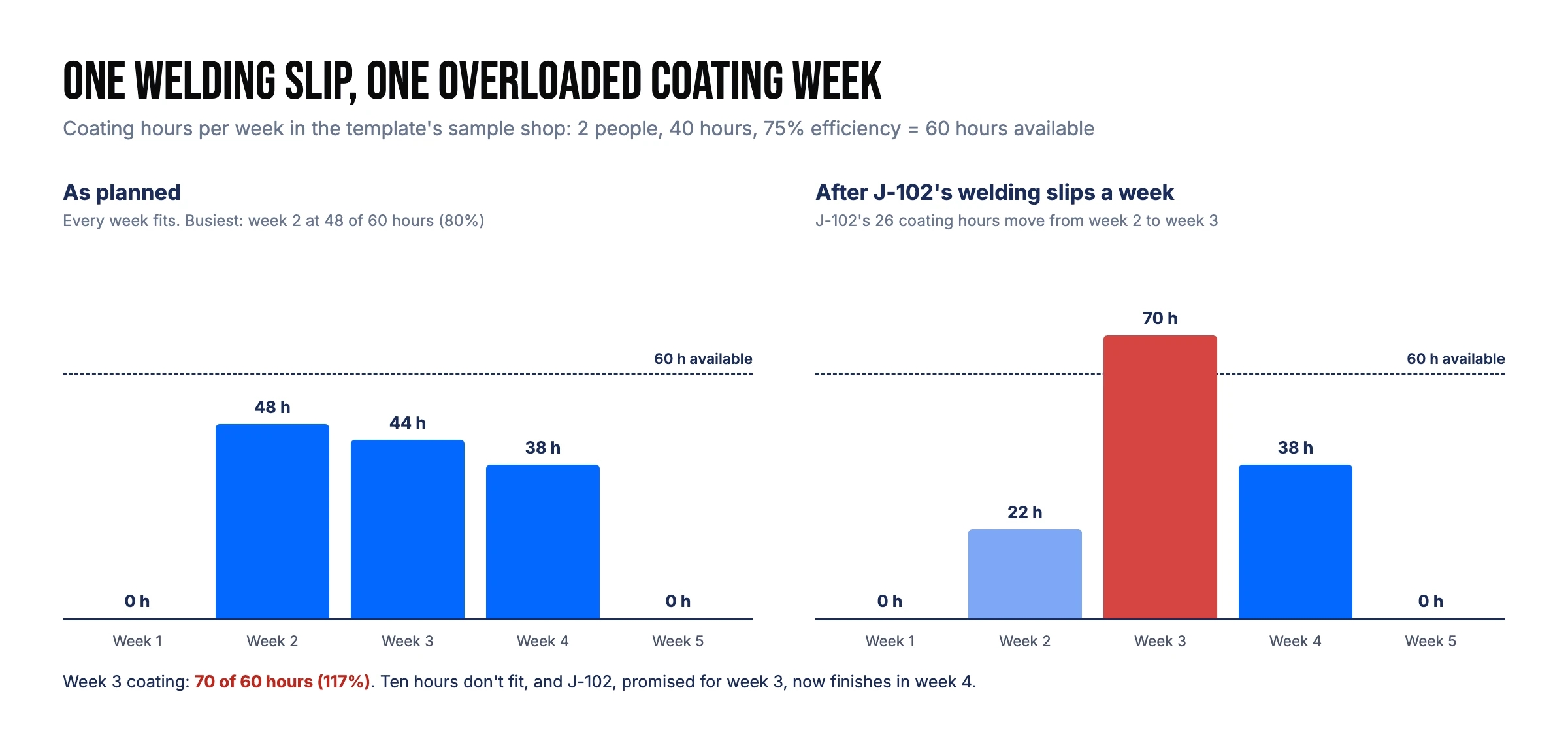
Here is what that looks like in the template’s sample shop: six jobs over five weeks, with 136 hours a week in fit and weld and 60 in coating (two people on a powder line at 75%, because loading, curing and color changes eat time).
| Job | Promised | Cutting | Fit and weld | Coating | Assembly and pack |
|---|---|---|---|---|---|
| J-101 Mezzanine frame | Week 3 | 18 h, wk 1 | 52 h, wk 1 | 22 h, wk 2 | 16 h, wk 3 |
| J-102 Two staircases | Week 3 | 14 h, wk 1 | 44 h, wk 2 | 26 h, wk 2 | 12 h, wk 3 |
| J-103 Handrail run, 40 m | Week 4 | 10 h, wk 2 | 36 h, wk 2 | 20 h, wk 3 | 10 h, wk 4 |
| J-104 Machine guards (12) | Week 4 | 16 h, wk 2 | 30 h, wk 3 | 24 h, wk 3 | 18 h, wk 4 |
| J-105 Canopy steelwork | Week 5 | 20 h, wk 3 | 60 h, wk 3 | 24 h, wk 4 | 14 h, wk 5 |
| J-106 Gates, pair | Week 5 | 8 h, wk 3 | 28 h, wk 4 | 14 h, wk 4 | 8 h, wk 5 |
This is a production schedule example in its simplest useful form: each job, its hours per department and the week each step is planned. As planned, every week fits. Coating is the busiest department: 48 of 60 hours (80%) in week 2 and 44 of 60 (73%) in week 3. All six jobs finish on or before their promised week.
Then the steel for job J-102, two staircases promised for week 3, arrives a week late, and its 44 hours of welding move from week 2 to week 3. That single change does three things:
| Week 3 | As planned | After the slip |
|---|---|---|
| Fit and weld | 90 of 136 h (66%) | 134 of 136 h (99%) |
| Coating | 44 of 60 h (73%) | 70 of 60 h (117%) |
| J-102 finishes | Week 3, on time | Week 4, late |
Welding just about copes. Coating now has 10 hours more work than it has people for, so either J-102 or one of the jobs already booked into week 3 (the handrail run or the machine guards) slides into week 4, and assembly’s week 4 fills up behind it. One late delivery of steel has touched three departments and up to three customers.
A production director at a UK container fabricator described the same thing in a demo with us: “We can have 10 containers ready to be painted, but the paint workshop has only got capacity for 5.” In a flat spreadsheet you usually find out on the day the containers are waiting. The Load tab in the template shows it the moment you move the welding week, which is the main reason it’s there.
5 signs your production schedule has outgrown Excel
The five signs are: work passes through several departments and slips surprise the next one, only one person can keep the plan, you hear about late jobs from customers, there are several versions of the plan, and you can’t say when a new job would really be done. One sign is a nuisance. Three or more usually means the sheet costs you more time than it saves.
1. A slip in one department surprises the next
What it looks like: coating finds out on Monday that welding is a week behind. Painters stand idle one week and work Saturday the next.
Quick test: when a job slips, does anyone change the other departments’ weeks the same day?
What helps first: a capacity tab like the one in the template, so moving one step shows you the knock-on load. If you have more than two or three departments and the weekly reshuffle takes over an hour, the sheet has reached its limit.
2. The plan lives in one person’s head
What it looks like: one planner (often the owner or the plant manager) holds the sheet, and the logic behind it is in their memory. As the assistant plant manager of a US laser and sheet metal shop put it on a call with us: “In order for me to leave on vacation, I got to do like two weeks worth of work in a week.”
Quick test: if your planner is off sick tomorrow, can someone else update the plan by lunchtime?
What helps first: write the rules down on the sheet’s “How to use” tab. If the answer is still “no one else could”, the risk sits with the business as much as with the sheet.
3. You hear about late jobs from the customer
What it looks like: the sheet shows what you planned. It doesn’t show what the floor did yesterday, so the first sign of a late job is a phone call asking where it is.
Quick test: how old is the newest piece of progress information in your schedule right now?
What helps first: a fixed weekly update meeting. But a weekly sheet only catches slips once a week, and someone still has to collect the information from the floor and type it in. More on this in how to improve on-time delivery in a fab shop.
4. There are several versions of the plan, and they disagree
What it looks like: the planner’s file, the printout on the wall and the office copy all say slightly different things. A general manager of a structural steel contractor told us their Excel files were updated so that “somebody updated, somebody didn’t update the file.”
Quick test: count how many copies of this week’s plan exist right now, including the printouts.
What helps first: one file, one editor, everyone else view-only. Errors are the other risk of a sheet that keeps growing: in the five most thorough audits of real business spreadsheets collected by spreadsheet researcher Ray Panko, 91% of the 55 spreadsheets examined had important errors.
5. You can’t say when a new job would really be done
What it looks like: a customer asks for a date, and you either guess or spend an afternoon adding up columns. Usually you guess.
Quick test: could you give a promise date for a new 100-hour job in ten minutes, knowing which department is the bottleneck that week?
What helps first: the Load tab, if it’s kept up to date. Type the new job in, see which week goes red, and you have your answer. Our promise date checker does the same sum for one job if you just want a quick check.
When a spreadsheet is still the right answer
A spreadsheet is still the right answer for a shop where work goes through one main department, one person plans, the work is fairly steady and, as a rough rule, there are fewer than about 15 live jobs. In that shop a well-kept sheet like this template will do the job, and we’d rather say so. Software won’t make that shop better planned. It will just give someone more to type. If you’re somewhere in between, our guide to simple production scheduling for small shops covers what a small shop needs from a scheduler.
The time to move is when the signs above start stacking up, usually because you’ve added a process, taken on more people, or the person who owns the sheet wants a holiday. Several shops we’ve spoken to reached that point the same way: they got the spreadsheet “better and better every day”, as one put it, and it still got more difficult to manage.
Excel vs production scheduling software
Excel is free and quick to set up, but the plan is only as current as the last time someone typed progress in. Production scheduling software costs a monthly fee and some setup time, and in return it recalculates each department’s load when work moves and takes progress straight from the floor.
| Excel or Google Sheets | Production scheduling software | |
|---|---|---|
| Cost | Free, or already paid for | A monthly subscription, plus setup |
| Setup | An afternoon | Days to weeks, depending on the tool |
| Several departments | Possible with a load tab like this one, updated by hand | Load per department recalculates when work moves |
| Progress from the floor | Someone collects it and types it in | Workers report start, pause and finish themselves |
| Who can change the plan | One editor, or versions drift | Several people, one version |
| Planner off sick | Often stuck | Anyone with access sees the same plan |
| Planned vs actual hours | Only if someone types the actual hours in | Recorded as work is reported |
| History for the next quote | In old files, if anyone kept them | Kept per job, step and department |
The real cost of the sheet is the planner’s time. In the sample shop above, one slip meant changing three departments’ weeks and checking six promise dates by hand. Do that two or three times a week and it soon adds up to hours of a senior person’s time.
Is free production scheduling software good enough?
Free production scheduling software is good enough for a shop that has the time to set it up and doesn’t need floor reporting. Besides Excel and Google Sheets, there are open-source planning tools such as Odoo Community and frePPLe Community, and general boards such as Trello. They cost nothing to license, but you set them up yourself, and most aren’t built around fabrication steps, department hours or reporting from the floor. If you’re weighing them up, our comparison of free and low-cost production scheduling software goes through the options.
What moving off the sheet looks like in EZIIL
EZIIL is fabrication scheduling software for custom fab shops of 10 to 150 people, and it uses the same structure as this template: jobs, the operations each one goes through with planned hours per department, and the hours each department has. The difference is that it stays current without one person retyping it.
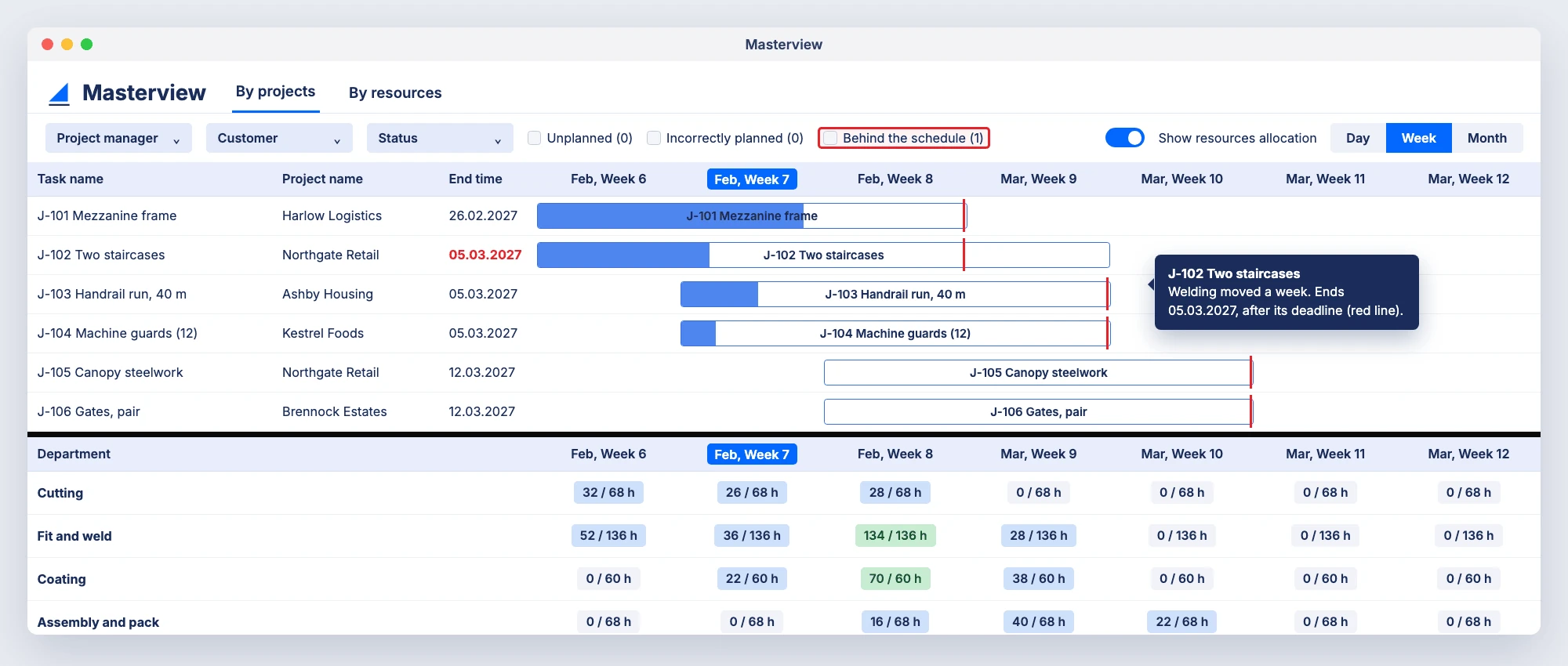
- Each department gets its available hours per working day, and Master View adds up every job’s hours per week against them. A week within about 20% of capacity shows green, under that shows blue, and more than about 20% over shows red. Hover over a red week to see which jobs are causing it. That band is wider than the template’s, which turns red at 100%, so the same 70 of 60 coating hours shows green in EZIIL. The late job still shows up, through the filter below.
- Holidays, shutdowns and overtime are dated changes to a department’s hours, much like the adjustments row in the template.
- Workers report start, pause and finish from a phone or a shared tablet, so the plan shows what the floor actually did. A “Behind the schedule” filter lists the jobs that are running late.
- EZIIL doesn’t move jobs for you. When a week goes red, you drag the work to another week, and the plan updates. Shops that liked their sheet because they stayed in control tend to like this, because nobody’s plan gets rewritten by a rule they can’t see.
- The Planned vs Reported report compares planned hours with the hours reported from the floor, by job, stage and operation, so your next estimate starts from what the job really took.
You don’t have to rebuild everything on day one. Starter runs in the first week, our team sets it up with you during onboarding, and you add modules one at a time when you’re ready. Some shops keep their old sheet running alongside for the first few jobs, and that’s fine. Enefit Solutions put it this way: “The whole team can now work in one system and we deleted 12 different Excels that we had to update otherwise every day.” And UPFab, a 35-person shop in Michigan, replaced spreadsheets and guess-work to get schedule visibility it could plan and price from.
EZIIL Starter costs €120 / $140 a month for up to 15 users, flat rate with no per-user fees, plus a one-off €300 / $350 onboarding fee (prices as of November 2026). What it doesn’t do: it plans by the day, not the hour, and it doesn’t reschedule automatically. It isn’t built for high-volume repeat production that needs minute-by-minute sequencing. More on the fabrication scheduling software page.
Want to see your own jobs in it? Take a free tour of EZIIL, or book a 30-minute demo.
Frequently asked questions
Can you use Excel as a production scheduling tool?
Yes. Excel works as a production scheduling tool for a small shop with one main department, one planner and a manageable number of jobs. Add a capacity check so you see when a department is overloaded. It gets hard to keep current once work passes through several departments or more than one person needs to change the plan.
How do I keep track of production in Excel?
Keep one row per job with its steps, planned hours, planned week and status, and update it at a fixed time each week. Mark finished steps, move steps that slipped, and compare each job’s last step with its promised date. The weak point is collecting progress from the floor, because someone has to ask and type it in.
What’s the difference between a production schedule and a master production schedule?
A master production schedule says what and how many finished products to make in each period, and it suits repeat production. A production schedule for a custom fab shop plans individual jobs and their steps (cutting, welding, coating, assembly) against the hours each department has.
Is there a free production schedule template for Google Sheets?
Yes. The EZIIL template on this page opens in Google Sheets: download the Excel file and import it into your Google Drive. The formulas and the red, amber and green load colors carry over.
How many jobs can a spreadsheet schedule handle?
There’s no fixed limit in Excel itself. The practical limit is the weekly update: once moving work around and checking promise dates takes more than about an hour a week, or more than one person needs to edit the plan, the sheet is costing more time than it saves.
How do I schedule a job that goes through welding and powder coating?
Give each process its own department with its own weekly hours, and plan each step of the job into a week. Coating can’t come before welding, so put it in the same week or later. When welding slips, move coating with it and check whether coating’s week is now overloaded.
Can EZIIL replace my Excel schedule?
Yes, if you plan by job and department. EZIIL uses the same structure: jobs, operations with planned hours per department, and department capacity per day, with the floor reporting progress. Our team sets up your departments and first jobs with you during onboarding.